
best plugins for wordpress


WordPress powers over 40% of all websites, and plugins are what make it so flexible. Whether you’re running a blog, an e-commerce store, or a business site, the right plugins can save you time, improve performance, and add functionality without needing to code. The problem is, there are over 60,000 plugins in the WordPress repository, and not all of them are worth your time. Some slow down your site, others are bloated with unnecessary features, and a few are just poorly maintained.
The best plugins are the ones that solve a specific problem well, stay updated, and don’t bog down your site. You don’t need a dozen plugins—just the right ones for security, speed, SEO, and whatever else your site actually needs. Below, I’ve assembled a list of the best options for WordPress plugins that actually work.
📋 Table of Contents
1. Yoast SEO
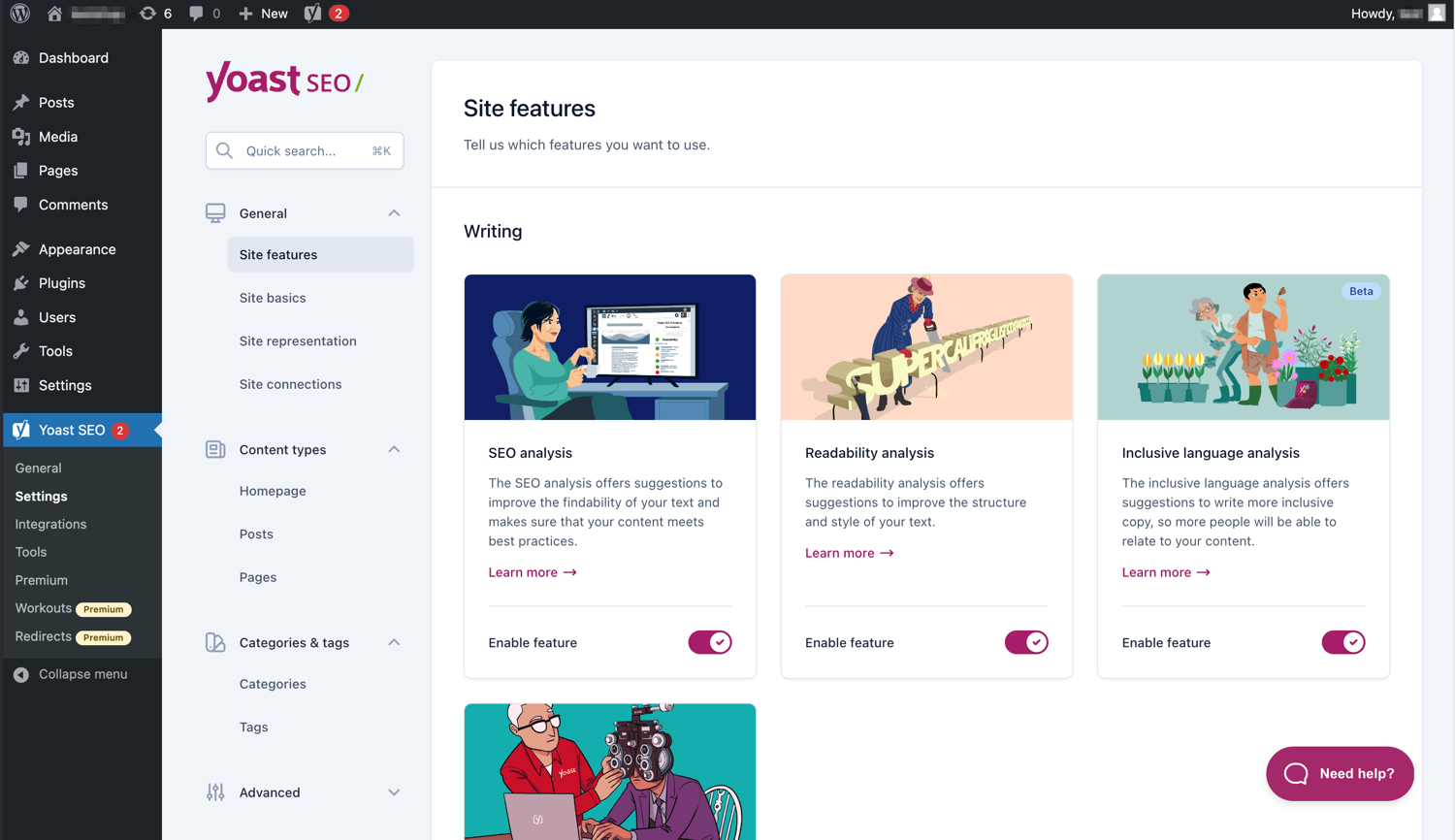
Yoast SEO is one of the most popular WordPress plugins for search engine optimization. It helps you optimize your content for search engines by providing real-time suggestions as you write. Whether you’re a beginner or an experienced SEO professional, Yoast SEO offers tools to improve your site’s visibility on search engines like Google. The plugin analyzes your content for readability and keyword usage, ensuring your posts are both user-friendly and SEO-friendly. It also generates XML sitemaps, manages meta tags, and provides breadcrumb navigation to enhance your site’s structure. Yoast SEO is a must-have for anyone serious about improving their search rankings and driving organic traffic to their website.
- SEO Analysis: Provides real-time feedback on your content’s SEO performance, including keyword usage, meta descriptions, and readability.
- XML Sitemaps: Automatically generates XML sitemaps to help search engines index your site more efficiently.
- Readability Check: Analyzes your content for readability, suggesting improvements to make it more engaging for readers.
- Breadcrumb Navigation: Adds breadcrumb navigation to your site, improving user experience and SEO.
- Social Media Integration: Allows you to customize how your content appears when shared on social media platforms like Facebook and Twitter.
2. Elementor

Elementor is a powerful drag-and-drop page builder for WordPress that allows you to create stunning websites without any coding knowledge. It offers a live editing experience, meaning you can see your changes in real-time as you design your pages. Elementor comes with a vast library of pre-designed templates and widgets, making it easy to build professional-looking websites quickly. Whether you’re creating a blog, an online store, or a business website, Elementor provides the flexibility and tools you need. The plugin is also fully responsive, ensuring your site looks great on all devices. With its intuitive interface and extensive features, Elementor is a favorite among both beginners and experienced web designers.
- Drag-and-Drop Editor: Allows you to build and customize your website pages with a simple drag-and-drop interface.
- Pre-Designed Templates: Offers a library of professionally designed templates to kickstart your website design.
- Responsive Design: Ensures your website looks great on desktops, tablets, and mobile devices.
- Advanced Widgets: Includes a wide range of widgets for adding elements like sliders, forms, and testimonials to your pages.
- Theme Builder: Allows you to customize every part of your website, including headers, footers, and archive pages.
3. WooCommerce
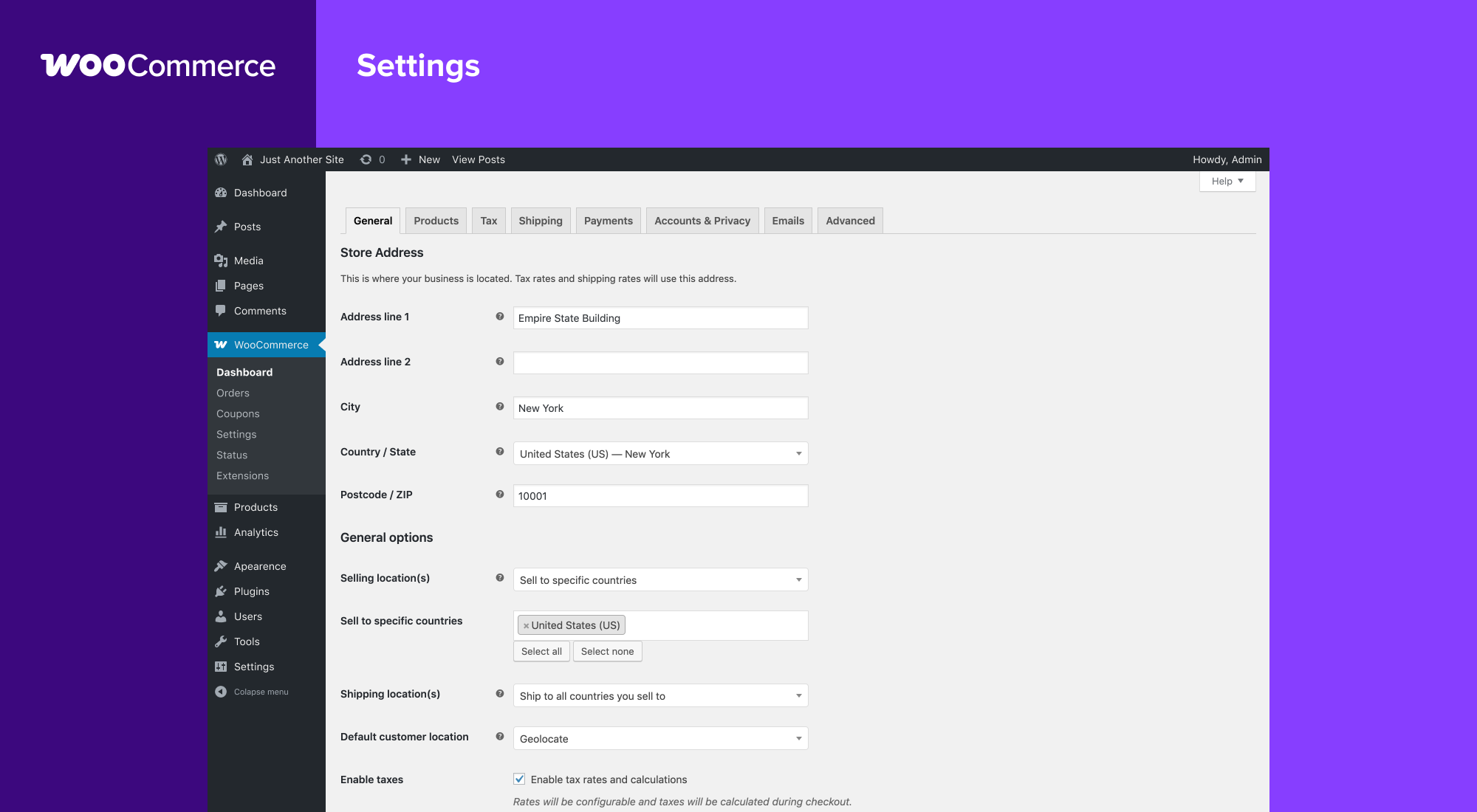
WooCommerce is the most popular eCommerce plugin for WordPress, powering over 28% of all online stores. It transforms your WordPress site into a fully functional online store, allowing you to sell physical and digital products with ease. WooCommerce offers a wide range of features, including product management, inventory tracking, secure payments, and shipping options. It also integrates seamlessly with various payment gateways and shipping providers, making it a versatile choice for businesses of all sizes. Whether you’re selling a few products or managing a large inventory, WooCommerce provides the tools you need to run a successful online store. Its flexibility and extensive library of extensions make it a top choice for eCommerce entrepreneurs.
- Product Management: Easily add, edit, and manage products, including physical and digital items.
- Secure Payments: Supports multiple payment gateways, including PayPal, Stripe, and credit card payments.
- Inventory Tracking: Keeps track of your stock levels and alerts you when inventory is low.
- Shipping Options: Offers flexible shipping options, including flat rate, free shipping, and real-time calculations.
- Extensions and Add-ons: Access to a vast library of extensions to enhance your store’s functionality, such as subscriptions, bookings, and memberships.
4. Wordfence Security

Wordfence Security is a comprehensive security plugin for WordPress that helps protect your website from hackers, malware, and other threats. It offers a robust firewall to block malicious traffic, as well as a malware scanner to detect and remove harmful code. Wordfence also includes features like login security, two-factor authentication, and real-time threat defense. The plugin is constantly updated to address new security vulnerabilities, ensuring your site remains protected against the latest threats. With its detailed security reports and alerts, Wordfence makes it easy to monitor your site’s security status and take action when needed. It’s an essential tool for any WordPress site owner who wants to keep their website safe and secure.
- Firewall Protection: Blocks malicious traffic and prevents hacking attempts before they reach your site.
- Malware Scanner: Scans your site for malware, backdoors, and other security threats, and helps you remove them.
- Login Security: Includes features like two-factor authentication and login attempt limits to protect against brute force attacks.
- Real-Time Threat Defense: Uses real-time data to block known attackers and protect against emerging threats.
- Security Reports: Provides detailed reports on your site’s security status, including alerts for potential vulnerabilities.
5. WP Rocket
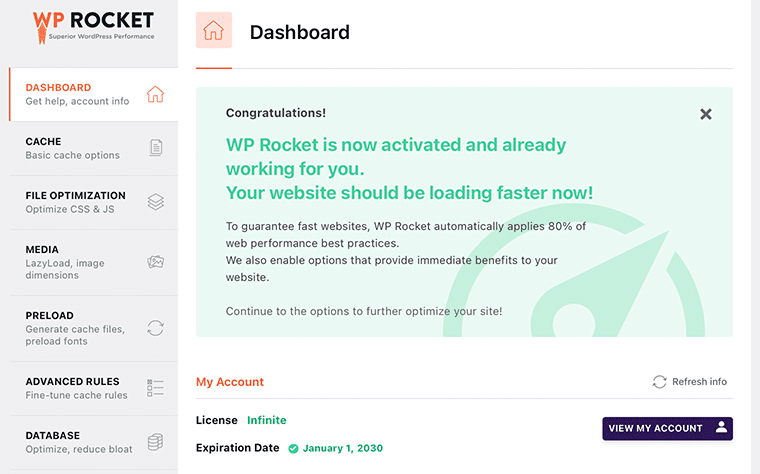
WP Rocket is a premium caching plugin for WordPress that helps improve your site’s speed and performance. Unlike many other caching plugins, WP Rocket is incredibly easy to set up and requires no technical knowledge. It automatically applies best practices for caching, such as page caching, browser caching, and GZIP compression, to reduce load times and improve user experience. WP Rocket also includes features like lazy loading for images, database optimization, and CDN integration, making it a comprehensive solution for speeding up your WordPress site. With its user-friendly interface and powerful features, WP Rocket is a top choice for anyone looking to boost their site’s performance without the hassle.
- Page Caching: Creates static HTML files of your pages to reduce server load and improve load times.
- Browser Caching: Stores static files in visitors’ browsers to reduce load times for repeat visitors.
- GZIP Compression: Compresses your site’s files to reduce their size and improve load times.
- Lazy Loading: Delays the loading of images and videos until they are visible on the screen, improving initial load times.
- Database Optimization: Cleans up your database by removing unnecessary data, such as post revisions and spam comments.
6. MonsterInsights

MonsterInsights is the best Google Analytics plugin for WordPress, making it easy to connect your site with Google Analytics and track your visitors’ behavior. With MonsterInsights, you can view your site’s analytics data directly in your WordPress dashboard, without needing to log into Google Analytics. The plugin provides detailed reports on your traffic sources, top pages, user demographics, and more, helping you make data-driven decisions to grow your business. MonsterInsights also offers advanced tracking features, such as eCommerce tracking, form tracking, and affiliate link tracking, making it a powerful tool for both beginners and advanced users. Its user-friendly interface and comprehensive reports make it a must-have for anyone looking to understand their audience better.
- Google Analytics Integration: Easily connect your WordPress site to Google Analytics with just a few clicks.
- Real-Time Stats: View real-time data on your site’s traffic and user behavior directly in your WordPress dashboard.
- eCommerce Tracking: Track your online store’s performance, including sales, conversions, and top products.
- Form Tracking: Monitor the performance of your contact forms, lead forms, and other forms on your site.
- Affiliate Link Tracking: Track clicks on your affiliate links to measure their performance and optimize your strategy.
7. UpdraftPlus
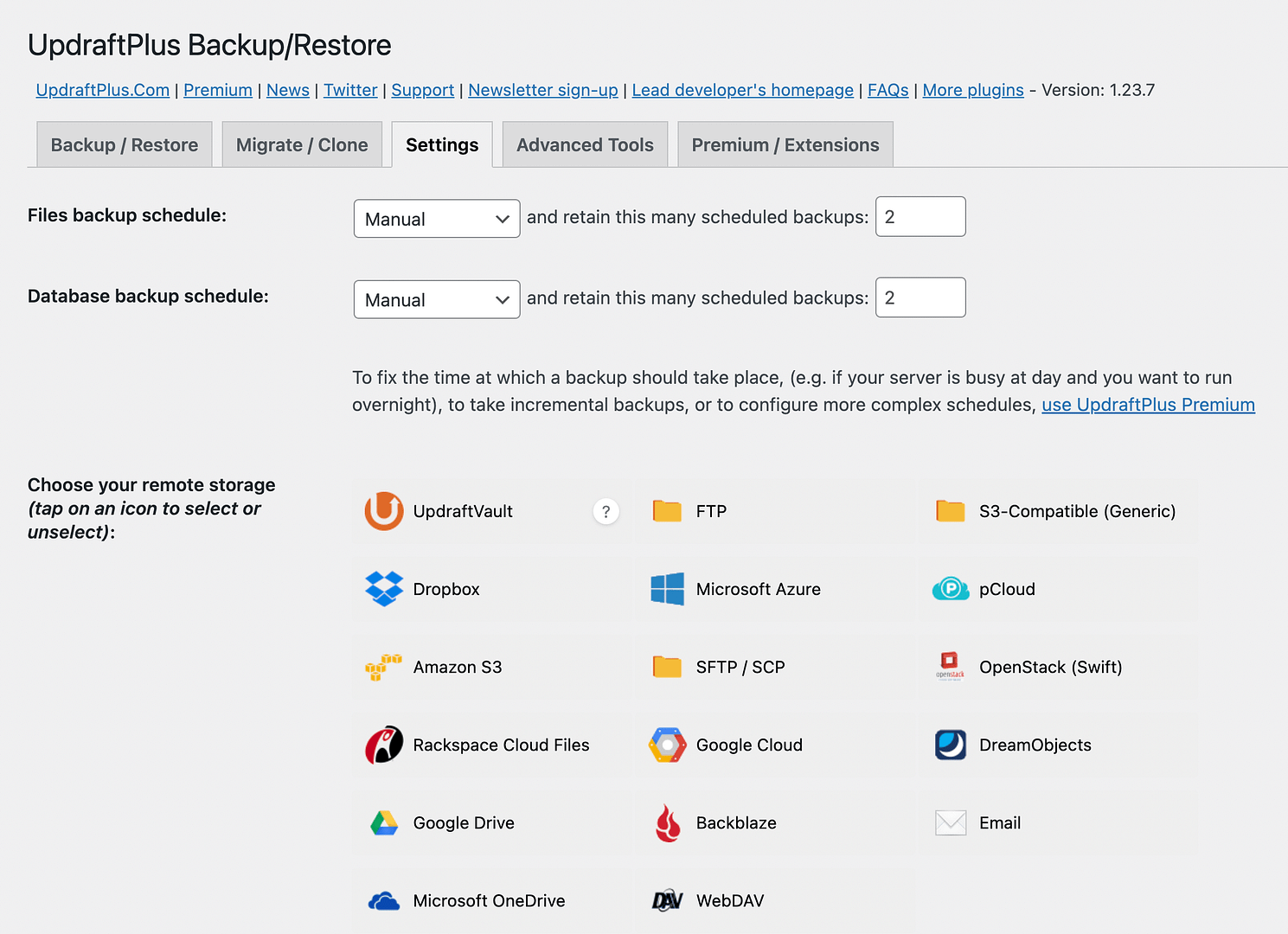
UpdraftPlus is a reliable and easy-to-use backup plugin for WordPress that helps you protect your site’s data. It allows you to schedule automatic backups of your site’s files and database, and store them in remote locations like Google Drive, Dropbox, or Amazon S3. In case of a hack, server crash, or accidental data loss, UpdraftPlus makes it easy to restore your site to a previous state with just a few clicks. The plugin also offers features like incremental backups, which only back up changes since the last backup, saving storage space and reducing server load. With its user-friendly interface and robust features, UpdraftPlus is a top choice for anyone looking to safeguard their WordPress site.
- Automated Backups: Schedule automatic backups of your site’s files and database at regular intervals.
- Remote Storage: Store your backups in remote locations like Google Drive, Dropbox, or Amazon S3 for added security.
- Easy Restoration: Restore your site to a previous state with just a few clicks, in case of data loss or hacking.
- Incremental Backups: Only back up changes since the last backup, saving storage space and reducing server load.
- Site Migration: Easily migrate your site to a new host or domain with UpdraftPlus’s migration tool.
8. Smush
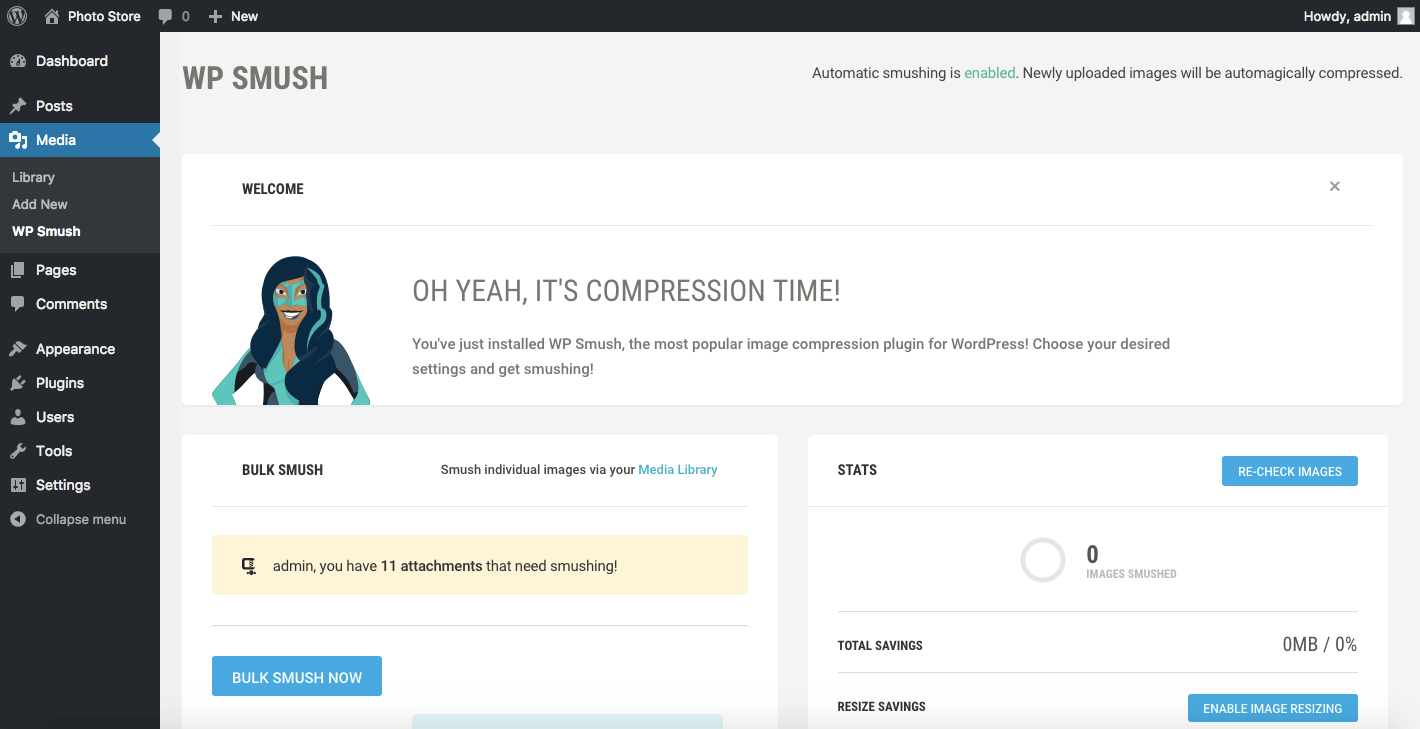
Smush is a powerful image optimization plugin for WordPress that helps you reduce the file size of your images without sacrificing quality. Large images can slow down your site, negatively impacting user experience and SEO. Smush automatically compresses and optimizes your images as you upload them, ensuring your site loads quickly. The plugin also offers features like lazy loading, which delays the loading of images until they are visible on the screen, and bulk optimization, which allows you to optimize all your existing images with just one click. With its easy-to-use interface and powerful features, Smush is a must-have for anyone looking to improve their site’s performance and speed.
- Image Compression: Automatically compresses and optimizes images as you upload them to reduce file size.
- Bulk Optimization: Optimize all your existing images with just one click, saving time and effort.
- Lazy Loading: Delays the loading of images until they are visible on the screen, improving initial load times.
- Lossless Compression: Reduces image file size without sacrificing quality, ensuring your images look great.
- CDN Integration: Integrates with image CDNs to further improve load times and performance.
9. Akismet Anti-Spam
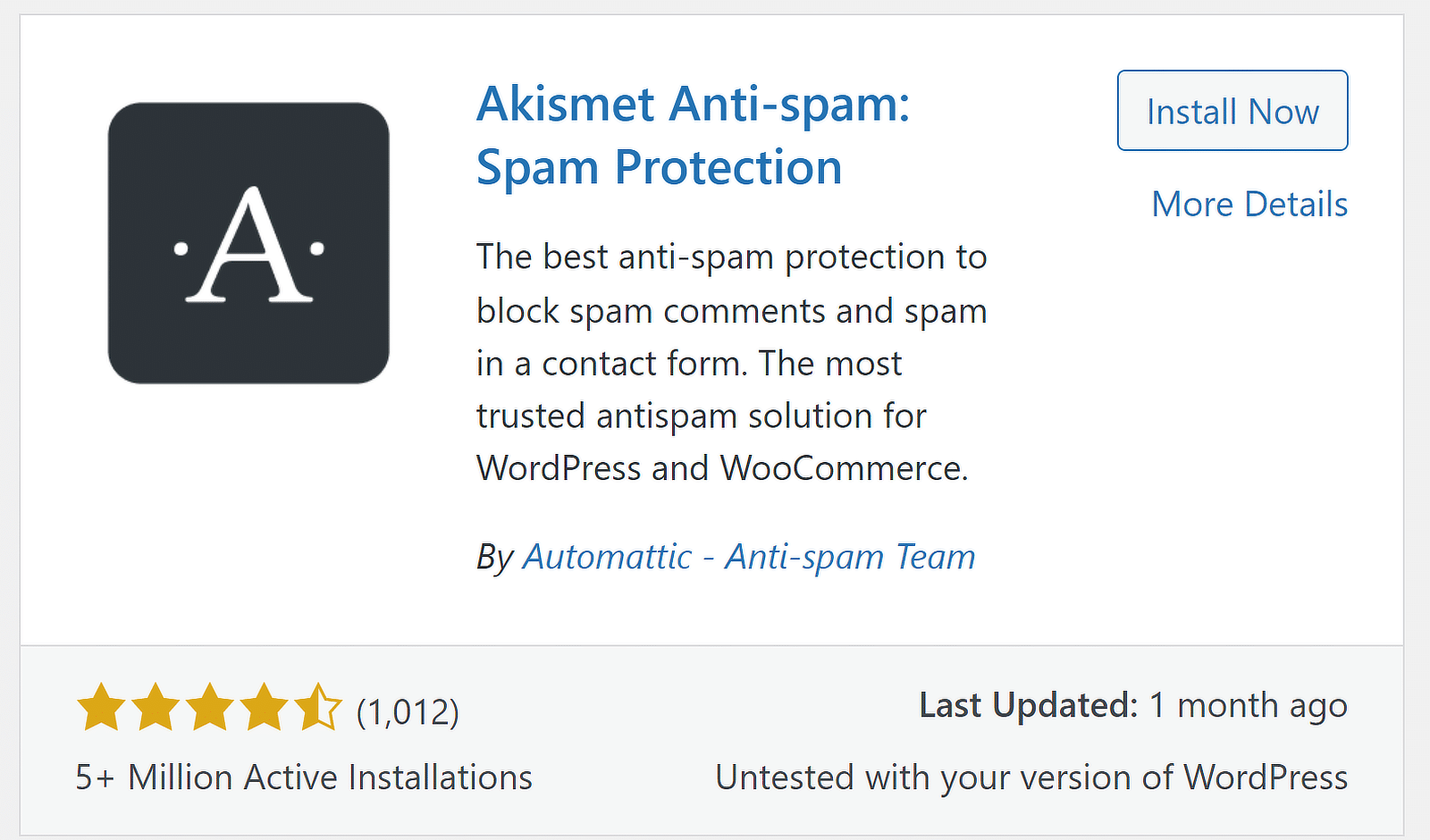
Akismet Anti-Spam is a must-have plugin for WordPress that helps protect your site from spam comments and form submissions. It automatically filters out spam comments, trackbacks, and contact form submissions, saving you time and keeping your site clean. Akismet uses a global database of known spam to identify and block malicious content, ensuring only legitimate comments and submissions make it through. The plugin is easy to set up and works seamlessly with popular contact form plugins like Contact Form 7 and Gravity Forms. With its powerful spam detection and low false-positive rate, Akismet is an essential tool for any WordPress site owner looking to maintain a spam-free site.
- Spam Filtering: Automatically filters out spam comments, trackbacks, and form submissions.
- Global Spam Database: Uses a global database of known spam to identify and block malicious content.
- Low False-Positive Rate: Ensures legitimate comments and submissions are not mistakenly marked as spam.
- Easy Setup: Simple to set up and works seamlessly with popular contact form plugins.
- Detailed Stats: Provides detailed statistics on the number of spam comments blocked and allowed.
10. Rank Math

Rank Math is a powerful SEO plugin for WordPress that offers a wide range of features to help you optimize your site for search engines. It provides real-time SEO analysis, keyword suggestions, and content optimization tips to improve your site’s visibility on search engines like Google. Rank Math also includes features like XML sitemaps, schema markup, and local SEO tools, making it a comprehensive solution for both beginners and advanced users. The plugin is designed to be user-friendly, with a setup wizard that guides you through the configuration process. With its extensive features and intuitive interface, Rank Math is a strong alternative to other SEO plugins like Yoast SEO, offering more functionality at a lower cost.
- SEO Analysis: Provides real-time feedback on your content’s SEO performance, including keyword usage and readability.
- Keyword Suggestions: Offers keyword suggestions to help you optimize your content for search engines.
- XML Sitemaps: Automatically generates XML sitemaps to help search engines index your site more efficiently.
- Schema Markup: Adds schema markup to your site, improving its visibility in search results with rich snippets.
- Local SEO: Includes tools to optimize your site for local search, such as Google My Business integration.
Frequently Asked Questions
What are WordPress plugins, and why do I need them?
WordPress plugins are pieces of software that add specific features and functionality to your WordPress website. They allow you to customize your site without needing to write any code. Plugins can help you improve your site’s SEO, enhance security, speed up performance, add eCommerce functionality, and much more. Whether you’re running a blog, an online store, or a business website, plugins make it easy to add the features you need to achieve your goals. Without plugins, you would have to manually code these features, which can be time-consuming and complex for most users.
How do I choose the best plugins for my WordPress site?
Choosing the best plugins for your WordPress site depends on your specific needs and goals. Start by identifying the features you want to add to your site, such as SEO tools, security enhancements, or eCommerce functionality. Then, look for plugins that are well-reviewed, regularly updated, and compatible with your version of WordPress. It’s also important to consider the plugin’s performance impact, as too many plugins can slow down your site. Stick to essential plugins and avoid installing multiple plugins that serve the same purpose. Finally, check the plugin’s support and documentation to ensure you can get help if you run into any issues.
Are free WordPress plugins safe to use?
Most free WordPress plugins are safe to use, especially those available in the official WordPress plugin directory. These plugins are reviewed by the WordPress team before being published, which helps ensure their safety and reliability. However, it’s still important to take precautions when installing any plugin. Always download plugins from reputable sources, such as the WordPress plugin directory or the plugin’s official website. Check the plugin’s reviews, ratings, and update history to ensure it’s well-maintained. Additionally, keep your plugins updated to the latest version to protect against security vulnerabilities. If you’re unsure about a plugin’s safety, consider using a security plugin like Wordfence to scan it for malware.
How many plugins should I install on my WordPress site?
There’s no set number of plugins you should install on your WordPress site, as it depends on your site’s needs and the quality of the plugins you choose. However, it’s generally best to keep the number of plugins to a minimum to avoid slowing down your site or causing conflicts. Focus on installing only the essential plugins that add the most value to your site. If you find that you’re using multiple plugins for similar purposes, consider consolidating them into a single, more comprehensive plugin. Additionally, regularly review your installed plugins and deactivate or delete any that you’re no longer using.
Can I use multiple SEO plugins on my WordPress site?
It’s not recommended to use multiple SEO plugins on your WordPress site, as they can conflict with each other and cause issues. Most SEO plugins offer similar features, such as meta tag management, XML sitemaps, and content analysis, so using more than one can lead to duplicate functionality and potential errors. Instead, choose one comprehensive SEO plugin that meets all your needs, such as Yoast SEO or Rank Math. If you need additional features, look for plugins that integrate with your chosen SEO plugin or consider upgrading to a premium version that offers more functionality.
How do I update WordPress plugins safely?
Updating WordPress plugins is essential for maintaining your site’s security and performance, but it’s important to do so safely. Before updating any plugin, create a backup of your site using a plugin like UpdraftPlus. This ensures you can restore your site if something goes wrong during the update. Next, check the plugin’s changelog to see what changes have been made and whether they might affect your site. If possible, test the update on a staging site before applying it to your live site. Finally, update your plugins one at a time, checking your site after each update to ensure everything is working correctly. If you encounter any issues, you can roll back to the previous version using your backup.
What should I do if a plugin breaks my WordPress site?
If a plugin breaks your WordPress site, the first step is to stay calm and avoid making any further changes. Start by identifying the plugin causing the issue. You can do this by deactivating all your plugins and then reactivating them one by one until the problem reappears. Once you’ve identified the problematic plugin, you can either deactivate it or delete it from your site. If you can’t access your WordPress dashboard, you can deactivate plugins manually by accessing your site’s files via FTP or your hosting provider’s file manager. Rename the plugins folder to something like plugins_old, which will deactivate all plugins. Then, create a new plugins folder and move your plugins back one by one until you find the culprit. If you’re unsure how to proceed, consider reaching out to your hosting provider or a WordPress professional for help.


